How I Used Claude to Design a Full SaaS Dashboard — From Rough Mockup to Figma-Ready UI
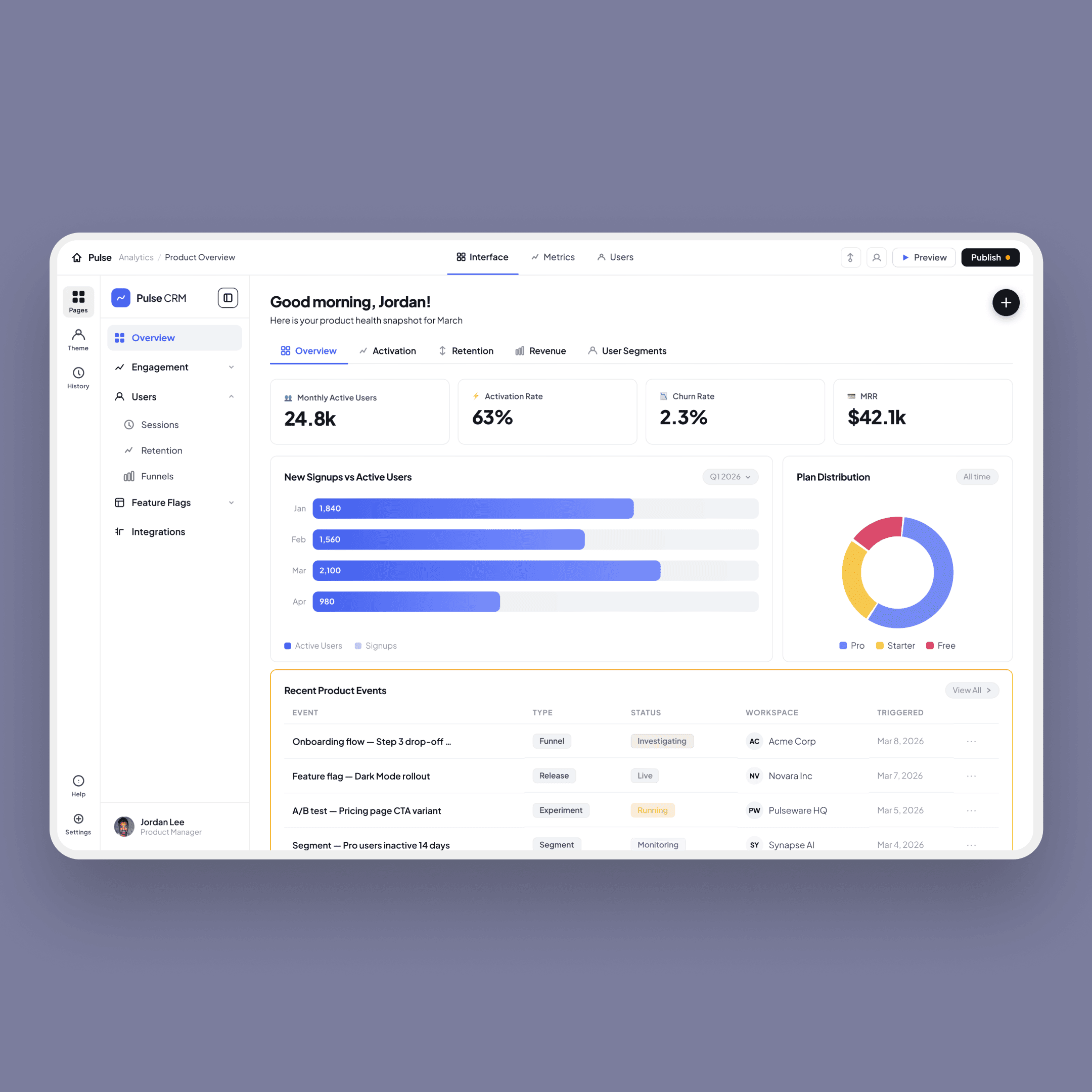
A step-by-step guide to using AI as your design co-pilot — building Pulse CRM, a complete SaaS analytics dashboard with desktop, mobile, and phone mockup.
What This Post Is About
Most designers use AI to generate ideas or write copy. But what if you used it to build an entireproduct UI iteratively, collaboratively, with real code output at every step?
That's exactly what I did to build Pulse CRM, a SaaS analytics dashboard. In this post I'll walk you through the exact prompts I used, the decisions we made together, and how the final result went from a rough developer-built mockup to a Figma-ready desktop UI, a dedicated mobile layout, and a white iPhone mockup - all using Claude.
No Figma skills required to follow this. No design background needed. Just clear thinking and good prompts.
What You'll Build
By the end of this tutorial you'll have:
• A polished desktop SaaS dashboard with a design system (colours, typography, spacing)
• A mobile-first layout with a scrollable phone mockup
• A Figma-ready HTML export for developer handoff
• A before/after comparison for your case study or portfolio
💡 TIP You don't need to be a designer to do this. Claude handles the CSS and layout logic — your job is to describe what you want and react to what you see.
Step 1: Start With a Reference or a Brief
The best way to start is to give Claude a clear brief. You can either describe the product from scratch, or even better share a screenshot of an existing UI you want to improve.
In this project, I shared a screenshot of an existing Softr-built dashboard and asked Claude to redesign it. Here's the opening prompt:
OPENING PROMPT
I'm going to share a screenshot of a SaaS CRM dashboard built in Softr. I want you to redesign it as a high-quality, Dribbble-ready HTML/CSS dashboard. Keep the Softr builder chrome (the outer topbar and icon nav) but redesign everything inside. Use a clean white background, no shadows, border-only cards, and Plus Jakarta Sans font. The accent colour should be #4361ee indigo blue.
Notice what this prompt does well:
• It gives a clear output format (HTML/CSS)
• It specifies the quality bar (Dribbble-ready)
• It defines constraints (no shadows, border-only, white background)
• It locks in specific design tokens (font, colour)
💡 TIP Give Claude constraints, not just goals. 'Make it look good' produces generic output. 'No
shadows, border-only cards, white background, Plus Jakarta Sans' produces something specific and
consistent.
Step 2: Establish Your Design System First
Before adding any content, get Claude to define your design tokens. This is the foundation everything else builds on. Ask Claude to set up CSS variables for your colour palette, spacing, and border radius.
DESIGN SYSTEM PROMPT
Before we build the UI, set up a CSS variables block with: background white, accent #4361ee, soft accent #eef1fd, border #e8eaee, text dark #0f1117, text secondary #3d4452, muted #8b92a5, green #22c55e, amber #f59e0b, rose #f43f5e, violet #8b5cf6. Use --radius: 10px and remove all box shadows.
With tokens defined, every subsequent change is a single value update — not a hunt through hundreds of lines of CSS. This pays off massively during iteration.
💡 TIP Always name your project early. We switched from 'Nexus CRM' to 'Pulse' mid-session because the name needed to match the product's identity. Claude updated it everywhere in one go —but it's cleaner to decide upfront.
Step 3: Build the Layout Shell
Once the design system is set, ask Claude to build the outer layout — the topbar, sidebar navigation, and main content area. Don't worry about the content yet. Just get the structure right.
LAYOUT PROMPT
Build the outer shell: a builder topbar with a 3-column grid layout (logo+breadcrumb left, Interface/Metrics/Users tabs centre, Preview+Publish buttons right). Below that, a left icon rail (Pages, Theme, History icons) and an app sidebar with nav items. The active nav item should use a blue pill background. The active tab should use a 2.5px blue underline, not a background.
The key insight here is asking for a 3-column grid on the topbar — this ensures the centre tabs stay truly centred regardless of what's on the left or right. A flex layout with justify-content: space-between would push them off-centre.
💡 TIP Ask Claude to explain its layout choices if something looks off. 'Why are the tabs not centred?' will get you a diagnosis and a fix faster than trial and error.
Step 4: Add Content Iteratively
This is where most people rush — they try to add everything at once. Instead, add content section by section and review after each one.
KPI Cards
KPI CARDS PROMPT
Add 4 KPI cards in a horizontal grid: Monthly Active Users (24.8k, +18% vs last month), Activation Rate (63%, -4.1% below target), Churn Rate (2.3%, -0.8% improvement), MRR ($42.1k, 84% of $50k goal). Each card: icon wrap top-right with coloured soft background, label + emoji top-left, large bold number below, trend footer with border-top separator. Green for positive trends, rose for negative.
Charts
CHARTS PROMPT
Add a 2-column charts grid below the KPIs. Left: a horizontal bar chart 'New Signups vs Active Users' for Jan/Feb/Mar/Apr with blue gradient fills and light blue-grey background tracks, values inside bars. Right: a donut chart 'Plan Distribution' — Pro 48% blue, Starter 32% amber, Free 20% rose — with '6.2k subscribers' in the centre. Add a horizontal legend row below the donut with rounded square swatches.
Events Table
TABLE PROMPT
Add a 'Recent Product Events' table with columns: Event, Type, Status, Workspace, Triggered. Add 5 rows with coloured avatar initials, type chips (Funnel/Release/Experiment/Segment/Alert), and status pills. (Investigating=blue, Live=green, Running=amber, Monitoring=blue, Critical=rose). Use very subtle row separators (#f0f1f4) instead of full borders.
💡 TIP Screenshot your output after each section and share it back with Claude. 'This is what it looks like — the bar chart bars have 3 colours, fix it to 2' is much more effective than describing the problem in words.
Step 5: Iterate With Screenshots
The most powerful workflow is: build → screenshot → share → refine. Claude can see images, so use that. After each section, take a screenshot and share it with your feedback. Here are examples of effective screenshot-based feedback prompts from this project:
SCREENSHOT FEEDBACK EXAMPLES
"The tabs are sitting too high — they need to align vertically with the rest of the topbar." "This icon has too much border radius, reduce it and change the background to subtle grey, not blue." "The bar chart has 3 colours — it should only be 2: blue fill and light grey track." "Remove the Add Block button, push the table down 8px from the title, and dim the row lines."
Each of these was a single message with a screenshot attached. Claude identified the exact CSS to change and fixed it in one response.
💡 TIP Be specific about what's wrong, not what you want instead. 'The spacing feels off' is hard to act on. 'Add 8px more padding between the chart title and the bars' is immediately actionable.
Step 6: Build the Mobile Version
Once the desktop is locked, build a separate mobile layout — don't just make the desktop responsive. Mobile requires different hierarchy decisions.
MOBILE PROMPT
Build a dedicated mobile version of the Pulse CRM dashboard. Header: hamburger menu icon, Pulse CRM logo, profile avatar (right). Below the header: greeting 'Good morning, Jordan!' at 26px bold, subtitle 'Your analytics overview for March'. Tabs below the greeting (not above it): Overview / Activation / Retention / Revenue with icons. 2-column KPI grid with no trend footers. Full-width bar chart, then donut chart stacked. Events as a card list with avatar initials, type chips, status pills. Bottom nav: Overview / Metrics / FAB / Users / Settings.
The critical decision here was putting the tabs below the greeting. In desktop, tabs are navigation chrome. On mobile, the greeting is the first thing you read — the tabs are secondary. This ordering change makes the mobile feel purpose-built, not just shrunk.
💡 TIP For mobile, always specify: font sizes (greeting should be big — 24-28px), touch target sizes (nav items need enough padding), and what to remove (we removed trend footers from KPI cards to reduce noise).
Step 7: Create a Phone Mockup
A phone mockup turns your mobile design into a presentation asset. Ask Claude to wrap the mobile layout inside an iPhone-style frame.
MOCKUP PROMPT
Wrap the mobile dashboard inside a white iPhone-style phone mockup. White shell with grey side buttons and power button, subtle shadow, Dynamic Island notch at the top. Inside: status bar showing 9:41 with signal/WiFi/battery icons. The dashboard should be scrollable inside the phone screen. Place the phone centred on a white background.
The resulting file is ready for Dribbble, a portfolio case study, or a client presentation — no Figma required.
Step 8: Export for Figma
When the design is finalised, ask Claude to prepare a Figma-ready version of the HTML file. This involves resolving CSS variables, stripping animations, and removing JavaScript.
FIGMA EXPORT PROMPT
Create a Figma-ready version of the dashboard HTML. Resolve all CSS variables to their raw hex values (e.g. var(--accent) becomes #4361ee). Remove all animations, transitions, keyframes, and JavaScript. Remove media queries — desktop layout only. Add a comment at the top noting it's Figma-ready.
Import the resulting file into Figma using the Builder.io HTML-to-Figma plugin. You'll get editable layers, text nodes, and colour styles you can work with directly.
Import the resulting file into Figma using the Builder.io HTML-to-Figma plugin. You'll get editable layers, text nodes, and colour styles you can work with directly.
💡 TIP After importing to Figma, run 'Edit > Find/Replace Color' to convert the hex values into Figma colour styles. This takes about 5 minutes and gives you a proper design system inside Figma.
Prompt Patterns That Work Best
After dozens of iterations on this project, these prompt structures consistently produced the best results:
The Constraint Prompt
PATTERN
Do X, but: [constraint 1], [constraint 2], [constraint 3]. Example: 'Add the icon, but no background fill, dark colour, 20px size, 8px border radius.'
The Reference Prompt
PATTERN
[Attaches screenshot] Make this match the reference. Specifically: [list the exact elements to match].
The Fix Prompt
PATTERN
[Attaches screenshot] This is wrong: [describe the problem precisely]. Fix it by [your hypothesis of the solution].
The Undo Prompt
PATTERN
Revert [specific change] — keep everything else the same.
💡 TIP Claude remembers the full conversation history. You can say 'go back to how the tabs looked 3 changes ago' and it will understand. This makes iteration feel like working with a designer, not re-explaining from scratch every time.
What Claude Can and Can't Do
Being honest about the limitations saves time:
Claude is great at
✓ Translating design intent into CSS
✓ Fixing specific visual bugs from screenshots
✓ Building consistent systems quickly
✓ Iterating fast on layout and spacing
✓ Preparing files for Figma export
Claude needs your direction for
Deciding what the product should feel like
Knowing your brand personality without context
Predicting what users prefer in your market
Making strategic product decisions
Replacing user research and testing
The Results
Starting from a rough developer-built dashboard, here's what was produced in a single session using Claude:
• A fully-coded desktop dashboard with a complete design system
• 4 KPI cards with icons, values, and trend footers
• A horizontal bar chart and donut chart side by side
• A full events table with status pills and workspace avatars
• A dedicated mobile layout with phone mockup
• A Figma-ready HTML export
• A before/after "old mockup" for case study comparison
Total time: one extended session. No Figma subscription needed for the initial design. No design background required. Just clear prompts and iterative feedback.
Key Lessons
Constraints are your friend. The more specific you are about what you don't want (no
shadows, no gradients, no rounded pills), the more distinctive the output.Screenshots beat descriptions. Sharing a screenshot of what's wrong gets faster, more
accurate fixes than describing the problem in text.Design tokens first. Setting up CSS variables before building anything means every iteration
is fast and consistent.Mobile is a different design problem. Don't ask for a 'responsive version' — ask for a
separate mobile layout with its own hierarchy decisions.You are the creative director. Claude executes. You decide. The quality of the output is
directly proportional to the clarity of your direction.
Tools Used
• Claude (Anthropic) — design iteration and code generation
• HTML / CSS / SVG — all components hand-coded by Claude
• Plus Jakarta Sans — via Google Fonts
• Builder.io HTML-to-Figma plugin — for Figma handoff
• Figma — for client review and further iteration
Related Posts
• 5 Claude Prompts Every Designer Should Know
• How to Build a Design System in a Single Conversation with Claude
• From Claude to Figma: The Complete AI Design Handoff Workflow
• Why I Stopped Starting in Figma (And What I Do Instead)
• Mobile-First UI Design With AI: A Practical Guide